
To ensure that the guardrails of compliance are in place, admins can add custom keywords to their Lexicon in Yext to prevent compliance infractions.
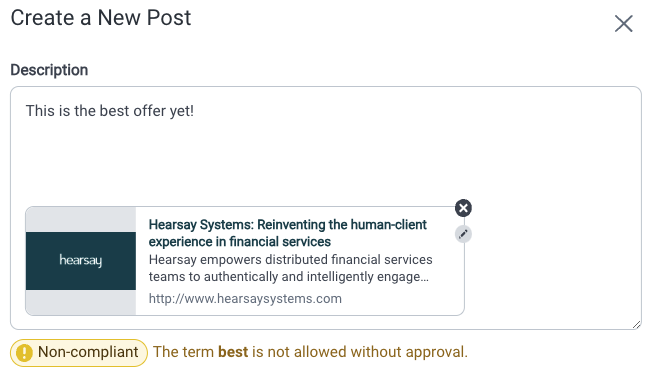
When an advisor or agent modifies a post from their suggested content library, or creates their own original post, and if they’ve included a custom keyword listed in your Lexicon, a prompt will appear, highlighting the lexicon term. The prompt will direct the user to either remove the keyword in order to publish the post, or, submit the post for compliance review in its current state.
The lexicon can be configured specific to your organization’s hierarchy, and syncs across all Yext products, including Social, Relate & Sites. This enables your organization to connect with their network on a deeper level, all while protecting them with fewer work for Compliance administrators.
To manage your Lexicon, click on the desired section to read more.
Pre-Set Lexicon Classifications
Adding Custom Keywords to Your Lexicon
Classifications and Matching Rules
Third Party URL Lexicon Scanning
Pre-Set Lexicon Classifications
Yext provides pre-set classifications that can be enabled or disabled for Lexicon infractions to detect for Profanity, Social Security Numbers, Phone Numbers, Custom Keywords, Display Lexicon Violations, and Financial PII. To configure these classifications, follow the steps below.
1. From the Administration view in Yext, select Settings > Organization Settings. If needed, select a specific region from the Hierarchy dropdown or leave it set to All Hierarchies. Then select Lexicon.
2. Scroll towards the bottom of the page and select Enabled or Disabled for each classification.
Note: Yext recommends to keep Display Lexicon Violations set to Enabled, in order to properly guide your end-users when a custom keyword is used. The default is to set Display Lexicon Violations to "Enabled" so organizations that do not want to display them must manually change this setting.
Disabling Display Lexicon Violations
Removing the ability to highlight Lexicon infractions puts Compliance Admins in a better position to coach and educate end-users on the proper protocol for posting to social media. The Lexicon still catches infractions but also allows Compliance Admins to provide information that can help users understand why their posts were not acceptable. Users receive an email from their compliance team about the infraction.
Once this setting is used, the Lexicon engine will work as usual. The only change will be the UI that is displayed to the end user on the Social Publisher and in resolution emails.
Figure 1: A user tries to publish a post that contains a Lexicon violation. A message appears asking the user to “Request Approval” but does not state which word(s) are unacceptable.
Adding Custom Keywords to Your Lexicon
1. From the Administration view in Yext, select Settings > Organization Settings. If needed, select a specific region from the Hierarchy dropdown or leave it set to All Hierarchies. Then select Lexicon.
2. In the Keywords section, type your custom word. If needed, click Classify to put the keyword into an existing classification (set of related words), such as 'Profanity', or add a new classification name by typing the classification in the text box and selecting Add.
3. Select the option you’d like: Exact match, Starts with, or Boolean. If your organization uses Relate, you can distinguish the keyword to only apply to text messages by check marking the box "Alert only for text messages". Then click Add.
4. Select the Manage Classifications and Download Keywords buttons as needed. Custom keywords that you've added to the Lexicon along with the classification type and hierarchy will be shown in the list below.
5. To modify the keyword, click on it from the list and choose to organize your keywords using classification labels. Then click Save.
6. To remove the keyword, click the "x" and then end of the row.
Note: Be sure Custom Keywords is set to "Enabled" from the pre-set Lexicon classifications section.
When an end user includes a lexicon keyword in their writing, Yext will prevent the activity and guide them toward resolution.
Classifications and Matching Rules
Yext allows you to classify the keywords in your lexicon. Classifications allow you to group sets of keywords together which you can then filter by, report on, and route for approval. Not every keyword needs to have a classification.
Segment for:
• Categories for reporting
• Infraction review filtering
• Escalation
Examples:
• Brand mentions, campaign tracking
• Regulatory, competitive mentions
• High priority/urgent
Matching Rules
In order to clearly define how to flag keywords, the keyword lexicon is structured using different matching rules. Note: the keyword lexicon is NOT case sensitive.
| Match Type | To Import* | Description |
| Starts with | prefix | Identifies any terms that start with the specified combination of letters |
| Exact match | exact | Match a word or phrase exactly |
| Boolean | boolean | A combination of terms to identify a matching or non-matching pair (e.g. Identify all x and y in any order in a sentence or all x only if y is not anywhere else in a sentence) |
Third Party URL Lexicon Scanning
Third party URL scanning allows the lexicon to check against not only content in a social post but content behind a link within a user or admin social post. This doesn’t change any pre-review workflow but helps ensure compliance for all content.
To enable this feature, contact your Customer Success Manager.